
The Editoria11y Accessibility Checker has now been enabled for all sites. This Princeton-developed tool checks as you type for common problems that will affect our community members.
If all is well, you will see blue check at the bottom right:
If errors are present, the checker will start to show an alert count. Click the count to jump to the first alert:
Tips will appear inline, with suggestions to improve the content. When viewing a page, there will be a link to open the editor. While editing, there will be a button to close the tip and place the cursor at the issue:
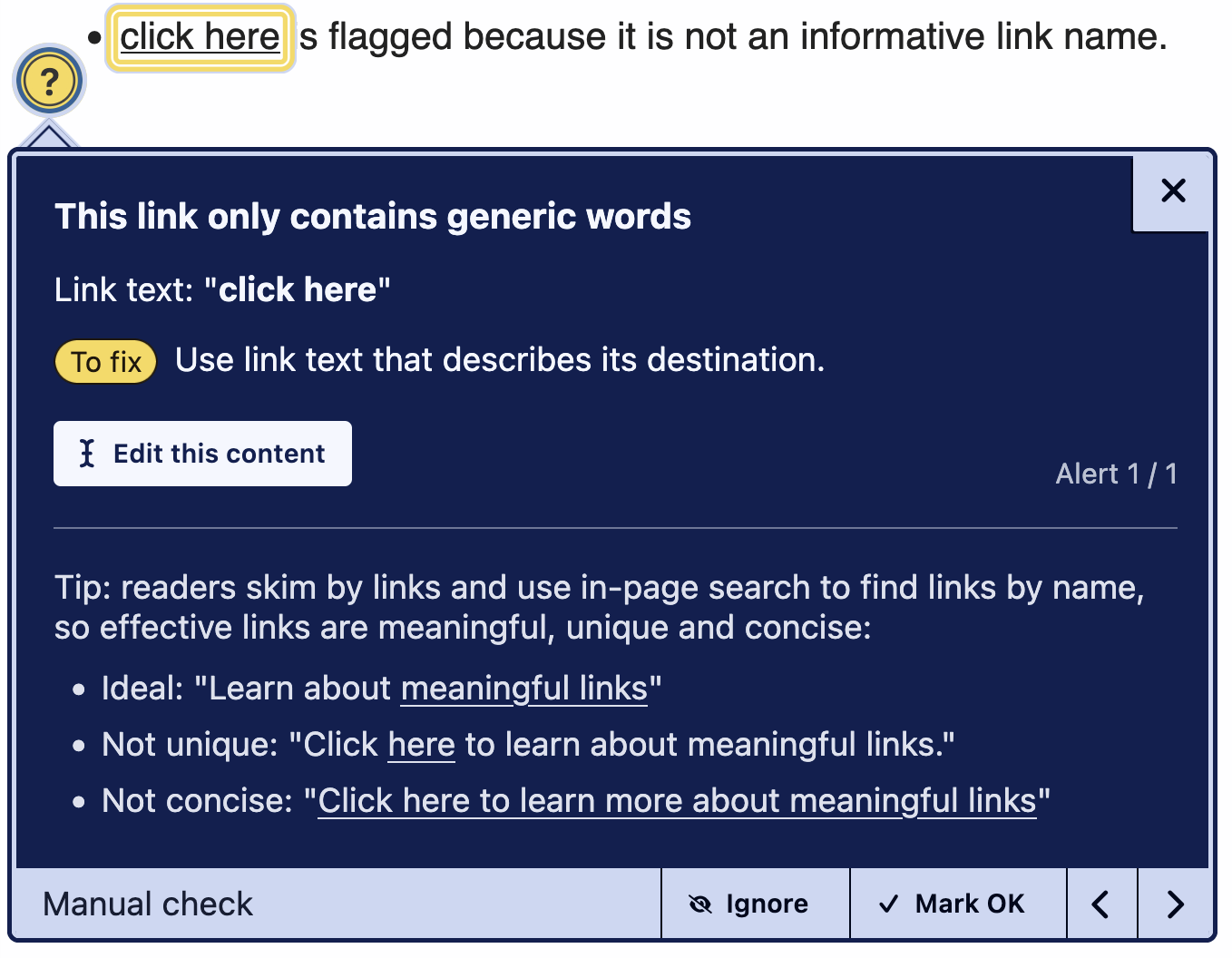
Red alerts are definite errors, yellow manual checks are often errors. Be sure to address all alerts before publishing new content. Manual checks should be fixed if needed or dismissed if not (“Mark OK”) to bring the unaddressed alert count back to zero.
If you are not sure why something is being marked or how to fix it, just reach out to the accessibility team. To quote them: “It’s our job to help. You are not interrupting us by asking us for help!”
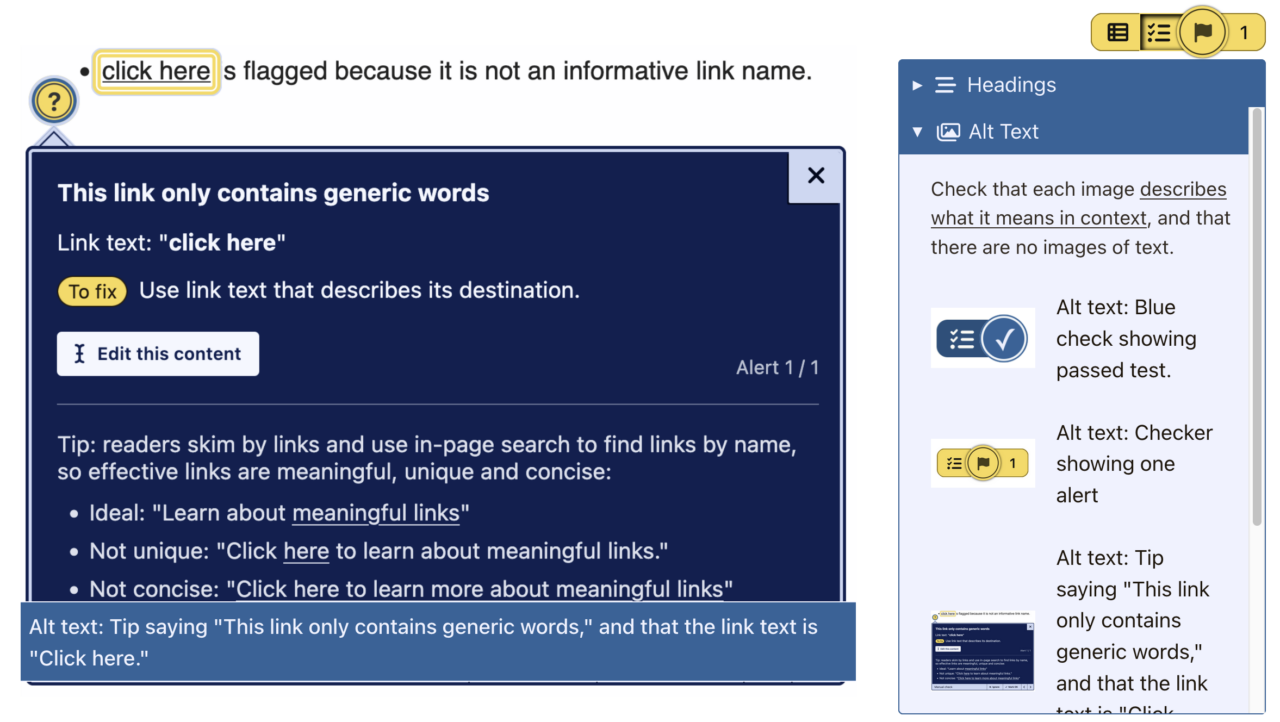
The checker also has a visualizer button, which reveals image alt text and the page heading outline:
The leftmost button on the checker toolbar takes you to your site reports:
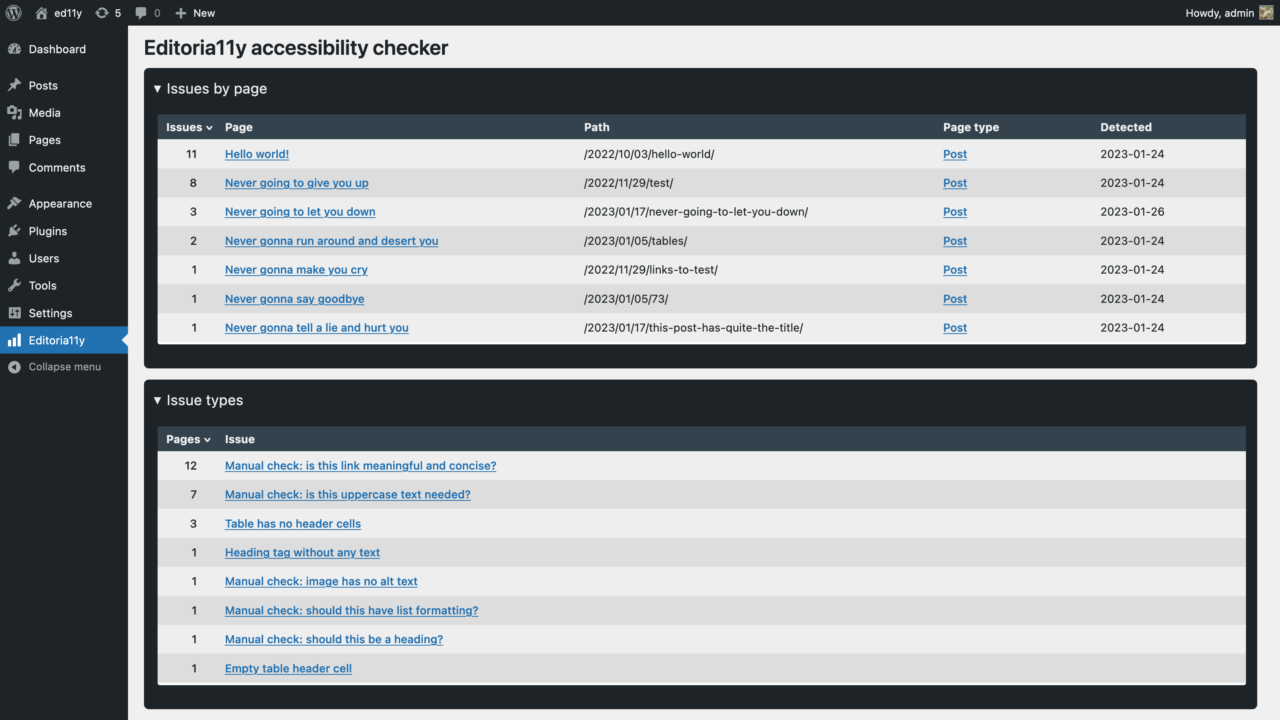
Reports can be sorted by count or detected date, to help you find frequent problems or problems in new content.
Pages are checked while viewing them as a logged-in editor, so your reports may be empty at first. Click through key pages on your site to refresh the reports.
The current version of the plugin includes the following tests:
Text alternatives
- Images with no alt text
- Images with a filename as alt text
- Images with very long alt text
- Images with fake alt text to get around field validation (e.g. “TBD”)
- Alt text that contains redundant text like “image of” or “photo of”
- Images in links with alt text that appears to be describing the image instead of the link destination
- Embedded visualizations that usually require a text alternative
Meaningful links
- Links with no text
- Links titled with a filename
- Links only titled with generic text: “click here,” “learn more,” “download,” etc.
- Links that open in a new window without warning
Document structure
- Skipped heading levels
- Empty headings
- Very long headings
- Suspiciously short blockquotes that may actually be headings
- All-bold paragraphs with no punctuation that may actually be headings
- Suspicious formatting that should probably be converted to a list (sequences of sentences that start with asterisks, emoji or incrementing numbers/letters)
- Tables without headers
- Empty table header cells
- Tables with document headers (“Header 3”) instead of table headers
General QA
- LARGE QUANTITIES OF CAPS LOCK TEXT
- Links to PDFs and other documents, reminding the user to test the download for accessibility or provide an alternate, accessible format
- Video embeds, reminding the user to add closed captions
- Audio embeds, reminding the user to provide a transcript
- Social media embeds, reminding the user to provide alt attributes
If you have any questions, suggestions or bug reports, contact a11ydev@ or stay for accessibility office hours after each Website Wednesday.
You must be logged in to post a comment.